

Set up your project
- New project
- Existing Cloudflare Workers project
Start with the cloudflare-workers-template and follow its README.
Create your Restate + CloudFlare workers repository
Local development
A Workers dev server can be started on port 9080 using:wrangler only supports HTTP/1.1 when running locally, so the --use-http1.1 flag is required. This flag is not needed when deploying to Cloudflare Workers.Register the service to Restate
After deploying to Cloudflare Workers, register the service with Restate CLI or UI providing Preview URLs to target specific service versions:Restate identity keys (for Restate Cloud)
To allow only a specific Restate Cloud environment to send requests to your Cloudflare Workers deployment, head over to your Restate Cloud Dashboard to set up Restate identity keys.Restate Cloud > Developers > Security
Set up Restate identity keys
CI/CD Automation
To automatically deploy to Cloudflare Workers on each git commit tomain and automatically register new Restate service versions:
Make sure your Cloudflare Worker project exists. If it doesn’t, create it with:
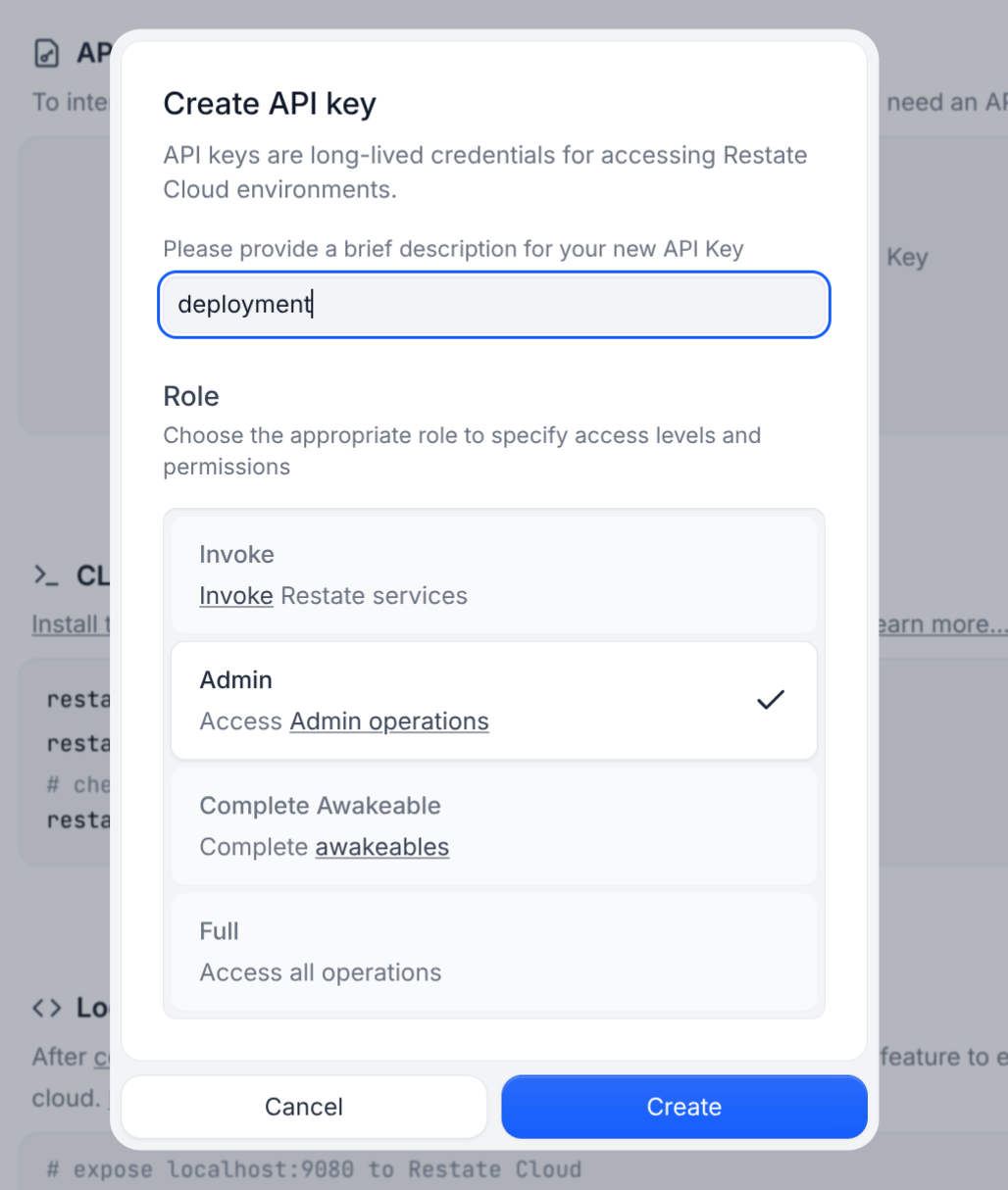
npx wrangler deployCLOUDFLARE_ACCOUNT_ID: Your Cloudflare Account. To get your account id, check https://developers.cloudflare.com/workers/ci-cd/external-cicd/github-actions/#cloudflare-account-idCLOUDFLARE_API_TOKEN: Your Cloudflare API token. To get a token, check https://developers.cloudflare.com/workers/ci-cd/external-cicd/github-actions/RESTATE_ADMIN_URL: The Admin URL. You can find it in Developers > Admin URLRESTATE_AUTH_TOKEN: Your Restate Cloud auth token. To get one, go to Developers > API Keys > Create API Key, and make sure to select Admin for role
Self-hosted Restate
Self-hosted Restate
You can use this workflow with Self-hosted Restate as well,
just make sure to correctly set up
RESTATE_AUTH_TOKEN and RESTATE_ADMIN_URL to reach your Restate cluster.